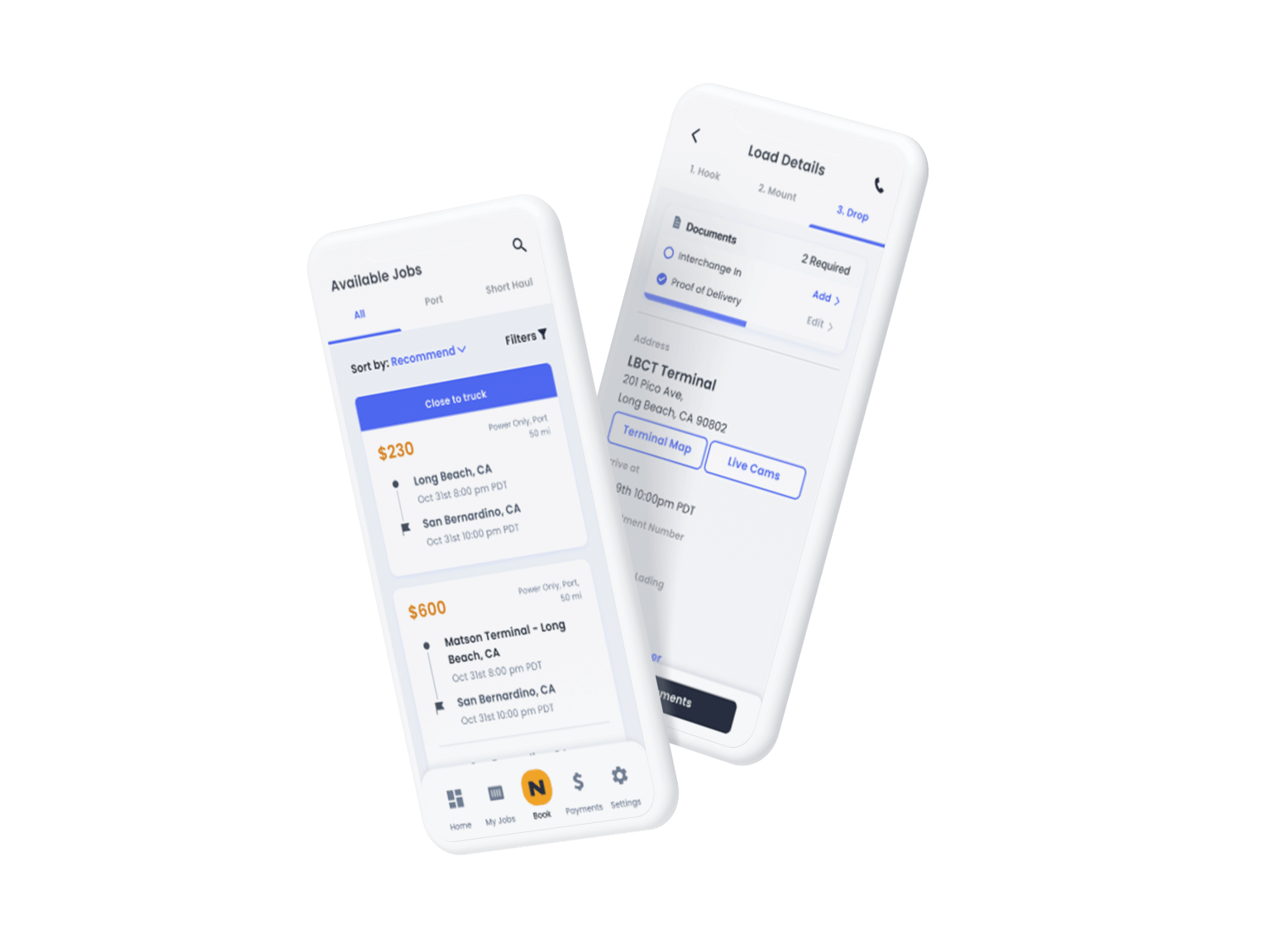


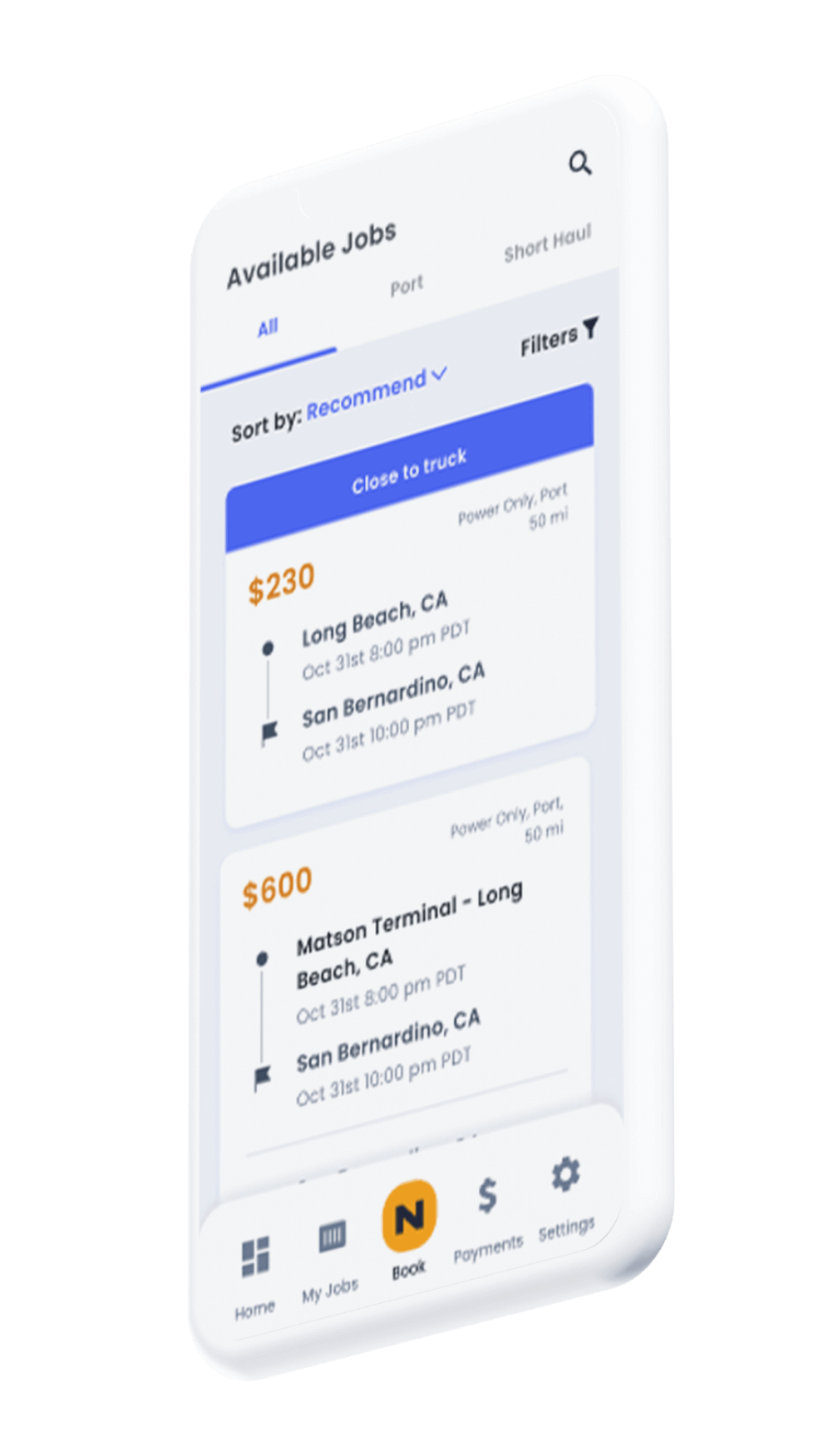


If you are interested in joining NEXT to complete port loads send an email to CAM@NEXTTrucking.com or call 1.855.688.6398 and speak to a Carrier Account Manager.
- All carriers must have the following:
- Active Operating Authorities (CA, MC, and DOT)
- MC #must be Active for a minimum of 6 months
- Have conducted at least 1 inspection (Voluntary or Routine and documented on SAFER Web)
- Active Insurance Coverage
Once you’ve decided on a load in Available Loads that you would like to book, click on it to see the Load Details.
<Image>
Note that some jobs may contain two loads, to help reduce empty miles.
<Image>
Like what you see? After reviewing the load details, click on the Book Now button to instantly book the load.
<Image>
There is a step to confirm you are able to complete the selected load. Please note any special requirements for this load and make sure you understand them before you book. Tap the button to confirm the booking.
<Image>
Learn how to view your loads in, How do I view my loads?
<Image>
If you are a Dispatcher, you will be prompted to assign a driver to the load after you’ve booked. Click Ok to assign one of your Fleet Drivers to the load.
<Image>
To view your current load on the NEXT app, click on My Loads in the app menu.
<Image>
Click on the Load Summary for your current load.
<Image>
Once you are ready to start your current load, click on the I’m ready to start driving button.
<Image>
When you arrive to the pickup location, tap on I’ve Arrived
<Image>
If at any time during the load you accidentally update to an incorrect status, you can click Undo to return the load to the previous status.
<Image>
Once you are loaded, click on I’ve Picked Up
<Image>
When you are ready to depart for the destination location, click on I’m Leaving
<Image>
When you arrive to the destination location, click on I’ve Arrived
<Image>
Once you are unloaded, click on I’ve Delivered
<Image>
You will be prompted to upload your POD.
<Image>
Drayage
When you complete a delivery, submit the required PODs, Interchange, and Chassis Docs directly from your smartphone within 2 hours.
<Image>
OTR
When you complete a delivery, submit the PODs directly from your smartphone within 2 hours.
<Image>
Re-submitting Docs
If you would like to submit a better quality document after submitting it, you can do so on the Payments section of the app.
<Image>
NOTE: If this is your first time uploading docs in the NEXT 2.0 app, you may need to give the app permission to use your camera.
If you chose not to upload your docs when your load was completed, you can get back to the Upload Documents screen directly from My Loads or the Load Details
<Image>
Once your proof of delivery docs are submitted, your invoice will be displayed. Invoices must be submitted in order for payment to be processed.
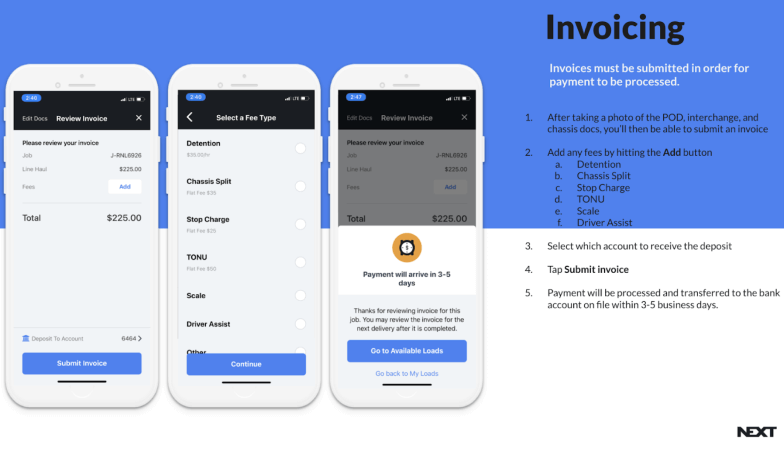
If you do not complete your invoice after submitting your documents, you can always go back to My Loads to complete your invoice at your convenience.
<Image>
There are a few reasons why you may have difficulty booking a load on the NEXT app:
- Your NEXT Driver/Dispatcher account is not approved
- Another Driver booked the load before you, while you were viewing the load
- You already have another load booked during the same scheduled load transit time
- You do not have enough insurance coverage to cover the cost of the freight
- Your insurance will expire before load pickup date
- Your insurance will expire during scheduled load transit time
- You do not qualify to book a Drayage Relay load
- Shipment was canceled while you were viewing or attempting to book the load
- You are out of cellphone reception range
If you are unable to book a load for any other reason than what is listed above, or if you feel as though you are unable to book a load due to an error, please contact support through Live Chat.
Below is the list of equipment that you can use to move loads with NEXT:
Trucks
- 2-Axle Power Only Unit
- 3-Axle Power Only Unit
Trailers
- Dry Van – 53’ or 48’
- Reefer – 53’ or 48’
- Flatbed – 53’ or 48’
- Power Only – 2 Axle or 3 Axle
- Box Truck – 24’, 26’, or 28’